步骤1:初始化vite项目
打开命令行,到目标目录下输入以下命令
会提示你输入你要创建的项目文件夹
1
2
3
4
5
6
| D:\Code\java\NeXAS_DX>npm create vite@latest
> npx
> create-vite
? Project name: » frontend
|
选择Others
1
2
3
4
5
6
7
8
9
10
11
12
| √ Project name: ... frontend
? Select a framework: » - Use arrow-keys. Return to submit.
Vanilla
Vue
React
Preact
Lit
Svelte
Solid
Qwik
Angular
> Others
|
然后选择 create-electron-vite
1
2
3
4
5
| √ Project name: ... frontend
√ Select a framework: » Others
? Select a variant: » - Use arrow-keys. Return to submit.
create-vite-extra ↗
> create-electron-vite ↗
|
然后选择 Vue
1
2
3
4
5
6
7
| > npx
> create-electron-vite frontend
? Project template: » - Use arrow-keys. Return to submit.
> Vue
React
Vanilla
|
有下列提示则代表初始化完成
1
2
3
4
5
| Done. Now run:
cd frontend
npm install
npm run dev
|
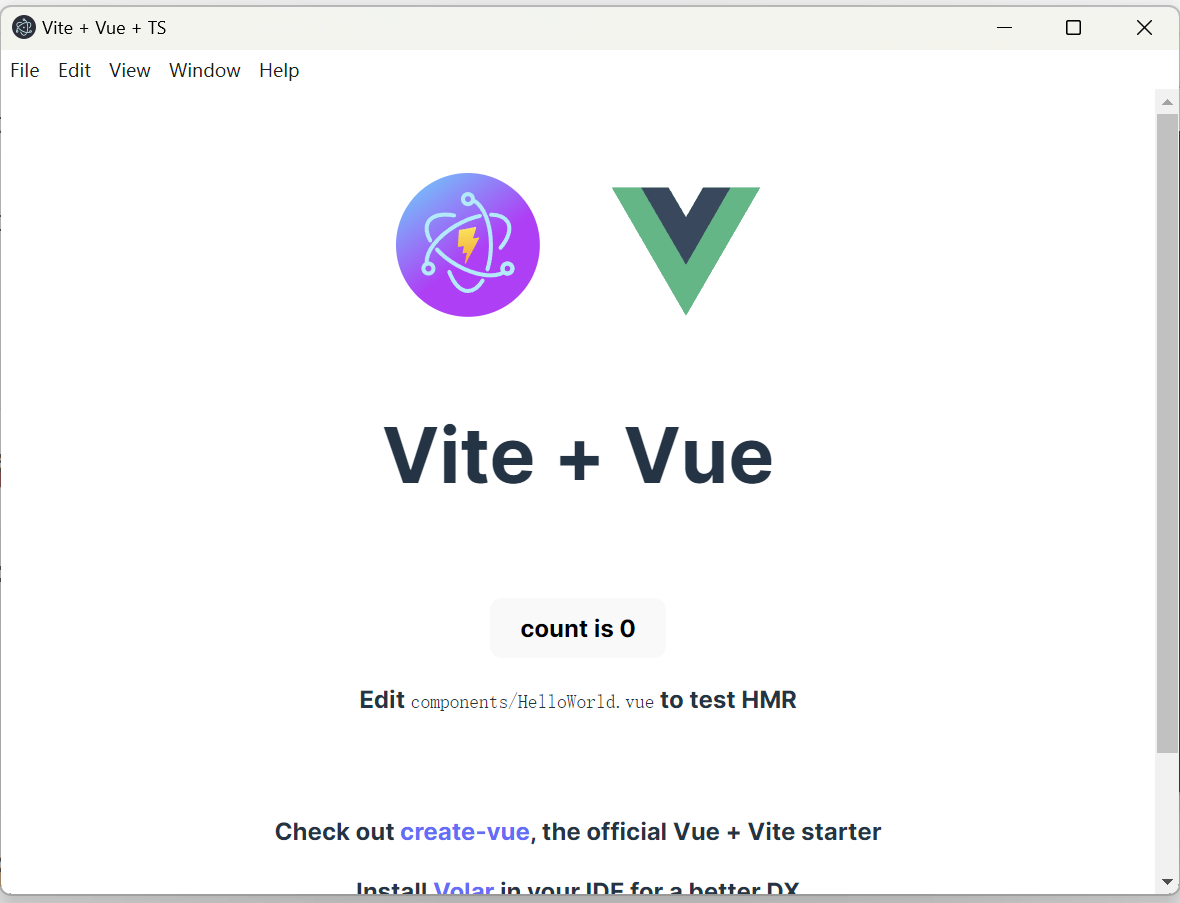
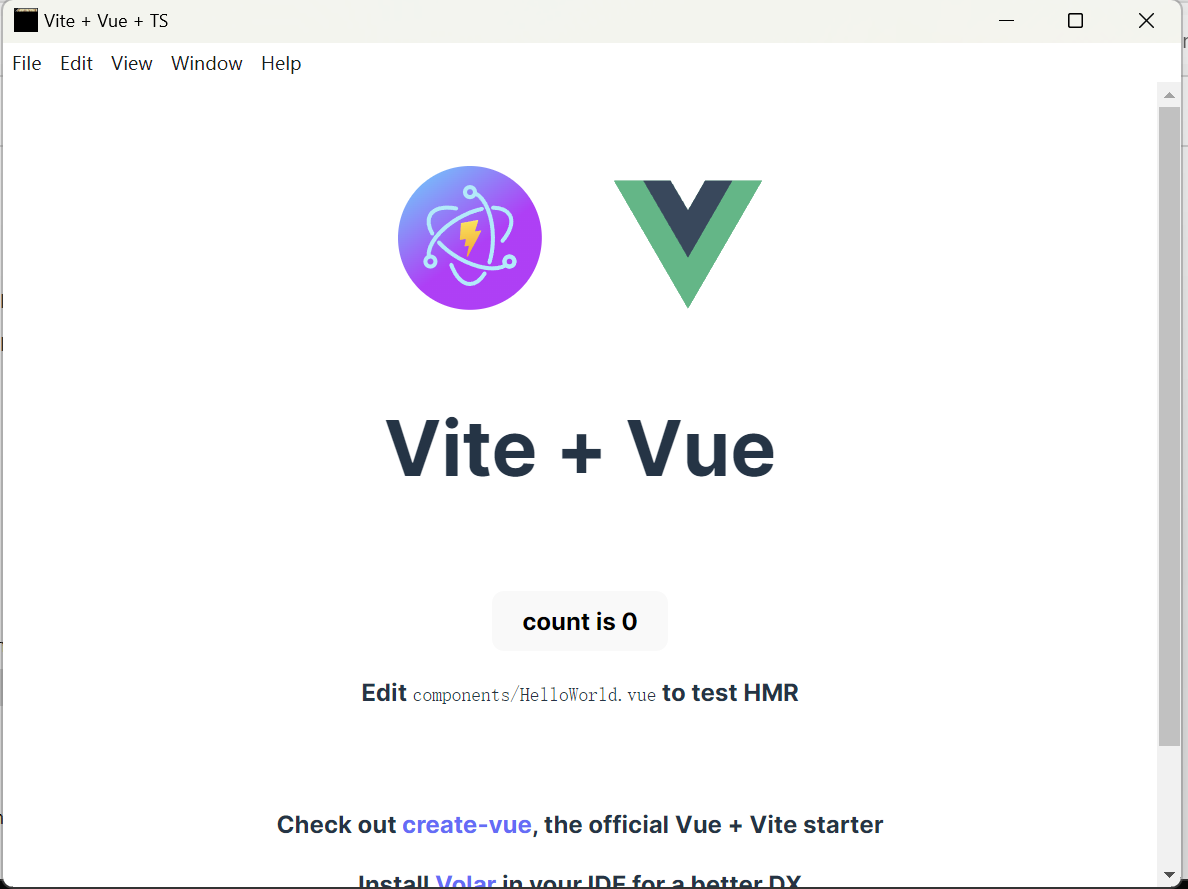
如上提示按顺序执行,弹窗弹出一个GUI,则代表项目构建结束

步骤2:调整配置
打开你的IDE,并找到 electron-builder.json5 ,如下
1
2
3
4
5
6
7
8
9
10
11
12
13
14
15
16
17
18
19
20
21
22
23
24
25
26
27
28
29
30
31
32
33
34
35
36
37
38
39
40
41
42
43
44
|
{
"$schema": "https://raw.githubusercontent.com/electron-userland/electron-builder/master/packages/app-builder-lib/scheme.json",
"appId": "YourAppID",
"asar": true,
"productName": "YourAppName",
"directories": {
"output": "release/${version}"
},
"files": [
"dist",
"dist-electron"
],
"mac": {
"target": [
"dmg"
],
"artifactName": "${productName}-Mac-${version}-Installer.${ext}"
},
"win": {
"target": [
{
"target": "nsis",
"arch": [
"x64"
]
}
],
"artifactName": "${productName}-Windows-${version}-Setup.${ext}"
},
"nsis": {
"oneClick": false,
"perMachine": false,
"allowToChangeInstallationDirectory": true,
"deleteAppDataOnUninstall": false
},
"linux": {
"target": [
"AppImage"
],
"artifactName": "${productName}-Linux-${version}.${ext}"
}
}
|
将其改成如下
1
2
3
4
5
6
7
8
9
10
11
12
13
14
15
16
17
18
19
20
21
22
23
24
25
26
| {
"productName": "nexasdxeditor",
"appId": "com.nexasdxeditor.www",
"win": {
"icon": "electron/resource/images/head.png",
"target": [
{
"target": "nsis",
"arch": ["x64"]
}
]
},
"nsis": {
"oneClick": false,
"perMachine": true,
"allowToChangeInstallationDirectory": true
},
"files": [
"dist",
"dist-electron"
],
"directories": {
"output": "build"
}
}
|
然后在 electron 文件夹下创建 resource/images/head.png ,创建完成后,找到 main.js 并将一部分代码注释掉
1
2
3
4
5
6
7
| import { app, BrowserWindow } from 'electron'
import { fileURLToPath } from 'node:url'
import path from 'node:path'
const __dirname = path.dirname(fileURLToPath(import.meta.url))
|
注释后重新在命令行构建
如果是初次执行,会下载一堆依赖,因为都是从github上下载的,所以……还是请自行解决。
总之,完成以后会是这样
1
2
3
4
5
6
7
8
9
10
11
12
13
14
15
16
17
18
19
20
21
22
23
24
25
26
27
28
29
30
31
32
33
34
35
36
37
| D:\Code\java\NeXAS_DX\frontend>npm run build
> frontend@0.0.0 build
> vue-tsc && vite build && electron-builder
vite v5.4.11 building for production...
✓ 18 modules transformed.
dist/index.html 0.48 kB │ gzip: 0.31 kB
dist/assets/index-BKCeV6hx.css 1.27 kB │ gzip: 0.65 kB
dist/assets/index-CVTRloTz.js 60.87 kB │ gzip: 24.57 kB
✓ built in 388ms
vite v5.4.11 building for production...
✓ 1 modules transformed.
dist-electron/main.js 1.08 kB │ gzip: 0.59 kB
✓ built in 9ms
vite v5.4.11 building for production...
✓ 1 modules transformed.
dist-electron/preload.mjs 0.35 kB │ gzip: 0.18 kB
✓ built in 9ms
• electron-builder version=24.13.3 os=10.0.22631
• loaded configuration file=D:\Code\java\NeXAS_DX\frontend\electron-builder.json5
• description is missed in the package.json appPackageFile=D:\Code\java\NeXAS_DX\frontend\package.json
• author is missed in the package.json appPackageFile=D:\Code\java\NeXAS_DX\frontend\package.json
• writing effective config file=build\builder-effective-config.yaml
• packaging platform=win32 arch=x64 electron=30.5.1 appOutDir=build\win-unpacked
• downloading url=https://github.com/electron/electron/releases/download/v30.5.1/electron-v30.5.1-win32-x64.zip size=109 MB parts=8
• downloaded url=https://github.com/electron/electron/releases/download/v30.5.1/electron-v30.5.1-win32-x64.zip duration=10.801s
• downloading url=https://github.com/electron-userland/electron-builder-binaries/releases/download/winCodeSign-2.6.0/winCodeSign-2.6.0.7z size=5.6 MB parts=1
• downloaded url=https://github.com/electron-userland/electron-builder-binaries/releases/download/winCodeSign-2.6.0/winCodeSign-2.6.0.7z duration=49.155s
• building target=nsis file=build\nexasdxeditor Setup 0.0.0.exe archs=x64 oneClick=false perMachine=true
• downloading url=https://github.com/electron-userland/electron-builder-binaries/releases/download/nsis-3.0.4.1/nsis-3.0.4.1.7z size=1.3 MB parts=1
• downloaded url=https://github.com/electron-userland/electron-builder-binaries/releases/download/nsis-3.0.4.1/nsis-3.0.4.1.7z duration=36.725s
• downloading url=https://github.com/electron-userland/electron-builder-binaries/releases/download/nsis-resources-3.4.1/nsis-resources-3.4.1.7z size=731 kB parts=1
• downloaded url=https://github.com/electron-userland/electron-builder-binaries/releases/download/nsis-resources-3.4.1/nsis-resources-3.4.1.7z duration=1m14.848s
• building block map blockMapFile=build\nexasdxeditor Setup 0.0.0.exe.blockmap
D:\Code\java\NeXAS_DX\frontend>
|
最后一步,找到你的 build\win-unpacked 双击exe启动
外面的那个则是安装包,如果你做的是开源项目,可以放到release目录下供大家使用
结语
最近打算给一款名为 baldr sky divex 的游戏开发一款mod编辑器,但无奈的是本人没有桌面应用开发经验。
索性知道了还有个Electron能直接以前端技术栈进行GUI的开发,并且可以连带启动子程序打包,意思就是我只用画个画面,然后写个后端就能给大家使用了(虽然现在的功能只有打包解包与shift-jis转hex)。
项目如下,如果有兴趣的话可以看看臃肿的代码:
https://github.com/Karaik/NeXAS_DX
目前(2025/01/05)这个项目还是私有项目,因为啥也没做出来,之后有成果的话会开源。